Kamis, 30 September 2010

Install Alexa Sparky untuk Mozilla - Cara Mengetahui Rank Alexa Setiap Situs yang Anda Kunjungi


Install Alexa Sparky untuk Mozilla - Cara Mengetahui Rank Alexa Setiap Situs yang Anda Kunjungi, alexa? Pasti nama ini sudah tidak asing lagi bagi kita-kita...khususnya para blogger. Oleh karenanya di postingan kali ini kita tidak akan membahas lagi apa itu alexa. Sebenarnya sih untuk mengetahui rank alexa itu gampang sekali, yaitu dengan cara mengunjungi situs asli alexa (alexa.com), lalu di sana kita bisa mengecek rank alexa situs kita maupun situs orang lain. Selain itu, untuk lebih mempermudah mengetahui rank alexa blog/web kita, kita cukup memasang widget rank alexa ke dalam blog kita. Namun ada satu masalah, atau bisa dikatakan sebagai suatu kesulitan yang lebih tepatnya lagi bisa dikatakan suatu pertanyaan (atau apa pun menurut sobat2...), yaitu cara mudah/gampang untuk mengetahui rank alexa setiap situs yang kita kunjungi, dengan maksud kita langusng mengetahui rank alexa situs yang sedang kita kunjungi tanpa harus mengunjungi situs alexa serta tak perlu memasang widget rank alexa, dengan kata lain...untuk mengetahui rank alexa di suatu situs (web/blog), seorang blogger tidak diharuskan memasang widget rank alexa. Lalu bagaimana dong caranya? Oke deh, mari kita bahas bareng.


Sebelum kita membahas bareng2 tentang "Install Alexa Sparky untuk Mozilla - Cara Mengetahui Rank Alexa Setiap Situs yang Anda Kunjungi", ada baiknya kita melihat contoh tampilannya:

Nah, yang di atas itu adalah contoh tampilan alexa sparky yang telah diinstall di browser mozilla saya dan yang telah saya beri tanda merah merupakan rank alexa situs yang sedang saya kunjungi. Dan untuk masalah letaknya? Alexa sparky ini terletak di kanan bawah browser kita, sebenarnya nggak hanya rank alexa situs yang bisa kita ketahui melalui fitur alexa ini, akan tetapi juga termasuk:
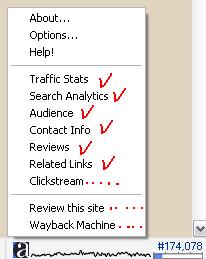
Halaman untuk menyampaikan review maupun komentar kita tentang situs tersebut di alexa, contact info yaitu untuk mengatahui alamat kontak si admin web/blog (jika tersedia), dll...untuk lebih lengkapnya bisa dilihat di screenshot di atas. Sebagai tambahan saja: Kelebihan fitur ini dibanding dengan widget rank alexa yang telah kita pasang di blog kita adalah, dengan fitur ini kita bisa mengetahui lebih cepat update-an rank setiap situs yang kita kunjungi, sedangkan untuk yang gadget yang berada di blog kita lebih lama untuk menampilkan update rank alexa terbaru.

Selanjutnya adalah cara memasang alexa sparky:

1. Silahkan untuk mengunjungi http://www.alexa.com/toolbar dan kliklah tombol seperti di gambar di bawah ini

2. Jika sudah diklik, maka kliklah tombol "accept and install", dan jika muncul pesan "allow" dari browser mozilla, maka kliklahlah allow...dan lakukan penginstallan seperti halnya penginstallan addons mozilla lainnya.

3. Jika cara di atas terasa amat sulit, maka teman-teman bisa juga mengunjungi langsung link berikut: https://addons.mozilla.org/en-US/firefox/addon/5362/

4. Selanjutnya kliklah link "Continue to download" selanjutnya proses penginstallan alexa sparky bisa dijalankan seperti halnya penginstallan addons lainnya.

5. Agar fitur alexa sparky tersebut bisa berjalan atau bisa muncul di browsernya sobat, maka yang harus dilakukan selanjutnya yaitu me-restart browser mozilla anda. Caranya cukup dengan cara meng-close/keluar dari mozilla anda.

6. Jika langkah-langkah di atas telah selesai dilakukan, sekarang silahkan untuk membuka kembali browser mozilla anda, maka akan ada tampilan baru di bagian kanan bawah browser anda, nah...itulah yang dinamakan dengan "alexa sparky".

Bagaimana, gampangkan?^ Selamat mencoba...
Jika ada masalah atau kesulitan, silahkan untuk meninggalkan komentar anda.

Semoga bermanfaat_

Tags: alexa sparky, memasang alexa di mozilla, kegunaan alexa sparky, mengetahui rank alexa sparky, alexa sparky untuk web blog

Rabu, 29 September 2010

Classic Look Make XP look just like older versions of Windows

If you're like me, you probably have grown way too close to the familiar Windows interface. That's OK. I don't adjust well to change either.

After installing XP you may notice the revamped interface looks nothing like the old one. I was completely thrown back when I tried using it for the first time, but I suspect that over time the new interface will begin to grow on you as it has with me.

Therefore, to ease your transition to the new OS, make a simple adjustment to XP to give it that classic look.

Here's how to do it:


Right-click your Desktop and select Properties.
On the Desktop Display properties, click the Appearance tab.
Under the Windows and buttons pull-down menu, select Windows Classic.
Click Apply to see your new look.
Click OK to close the Desktop Display properties.

Selasa, 28 September 2010

Display the Quick Launch Bar

If you have opened more than one program, you might like to display and use the Quick Launch bar. The Quick Launch bar makes it easy to access frequently used programs like Windows Media Player and your e-mail, and to open an Internet Explorer window. Windows XP loads several programs in the Quick Launch, including Show Desktop. One click on Show Desktop minimizes all the programs on your desktop. Another click restores them just as you'd left them.

To display Quick Launch on the taskbar

1. If the Quick Launch bar is not displayed, right-click an empty area on the taskbar and click Properties.
2. On the Taskbar tab, under Taskbar appearance, select the Show Quick Launch check box and click OK.
After Quick Launch is displayed, click Show Desktop to minimize all open programs.

Senin, 27 September 2010

Don't Ignore the Windows Logo Key

The Windows logo key, located in the bottom row of most computer keyboards is a little-used treasure. Don't ignore it. It is the shortcut anchor for the following commands: Windows: Display the Start menu Windows + D: Minimize or restore all windows Windows + E: Display Windows Explorer Windows + F: Display Search for files Windows + Ctrl + F: Display Search for computer Windows + F1: Display Help and Support Center Windows + R: Display Run dialog box Windows + break: Display System Properties dialog box Windows + shift + M: Undo minimize all windows Windows + L: Lock the workstation Windows + U: Open Utility Manager

Minggu, 26 September 2010

Compatibility Mode Make older programs run in Windows XP

If you're having trouble running older programs originally developed for previous versions of Windows, you're not out of luck. Luckily for consumers, Microsoft built Compatibility Mode into XP. Compatibility Mode allows you to run a program using the shell of the original program it was developed for.


Here's how to access a program's Compatibility Mode in XP:


Find the executable or program shortcut icon you'd like to run.
Right-click the icon and select Properties.
Click the Compatibility tab and place a checkmark next to the text labeled "Run this program in compatibility mode."
Select the operating system that the program was originally intended to run on.
You may need to fine-tune the three fields under "Display Settings" if an older program requires 640x480 resolution or 256 colors.
Click Apply.

Try starting the program after making these changes. If it still gives you trouble, try a different operating system. If the program was written for Win95 and worked fine in Win98, there's nothing that says it still won't work fine with Win98.

Sabtu, 25 September 2010

Convert a FAT Partition to the NTFS File System

To convert a FAT partition to NTFS, perform the following steps.

Click Start, click Programs, and then click Command Prompt.

In Windows XP, click Start, and then click Run.


At the command prompt, type CONVERT [driveletter]: /FS:NTFS.


Convert.exe will attempt to convert the partition to NTFS.


NOTE: Although the chance of corruption or data loss during the conversion from FAT to NTFS is minimal, it is best to perform a full backup of the data on the drive that it is to be converted prior to executing the convert command. It is also recommended to verify the integrity of the backup before proceeding, as well as to run RDISK and update the emergency repair disk (ERD).


Convert.exe will attempt to convert the partition to NTFS.

Jumat, 24 September 2010

XP Animations

You can turn off window animation ("exploding" windows), displayed when you play around with minimizing/maximizing open windows. This makes navigating Windows 95/98/ME/NT4/2000/XP a lot quicker, especially if you don't have a fast video controller, or if you got tired of seeing it all the time (like I did). :)
To do this, run Regedit (or Regedt32) and go to:
HKEY_CURRENT_USER | Control Panel | Desktop | WindowMetrics
or if you are the only user of your Windows computer go to:

HKEY_USERS | .Default | Control Panel | Desktop | WindowMetrics

Right-click on an empty spot in the right hand pane. Select New -> String [REG_SZ] Value. Name it MinAnimate. Click OK. Double-click on "MinAnimate" and type 0 to turn OFF window animation or 1 to turn it ON. Click OK. Close the Registry Editor and restart Windows. Done.

TweakUI, the famous Microsoft Power Toy [110 KB, free, unsupported] can also turn off animated windows.
Just remove the check mark from the "Window Animation" box under the General tab.